Apitally now supports ASP.NET Core
Introducing our new SDK for ASP.NET Core, making it easy to monitor your APIs, gain valuable API insights, and log individual API requests.
 Simon Gurcke/Updated /2 min read
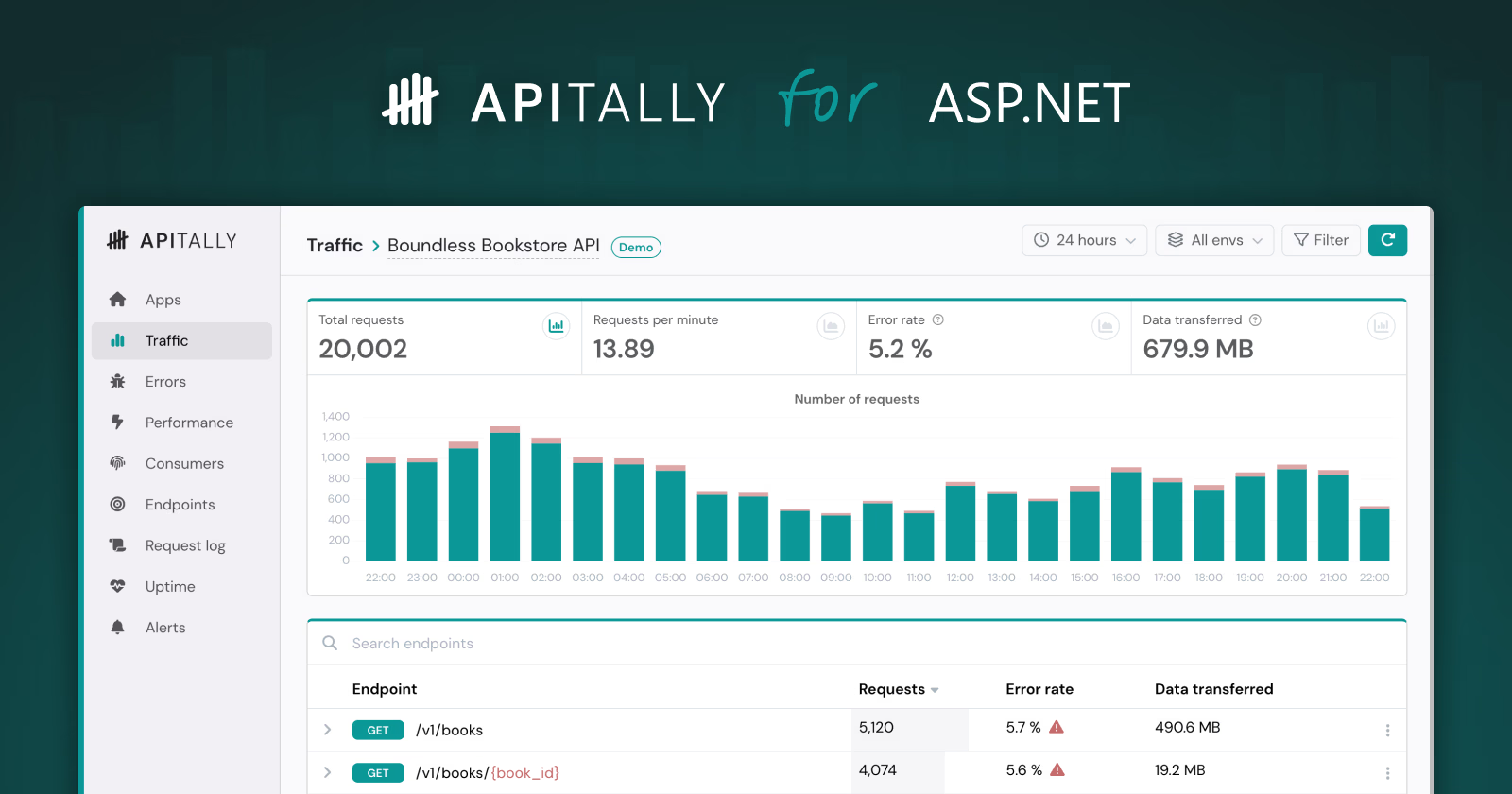
We’re excited to announce that Apitally now supports ASP.NET Core.
Our new open-source SDK for .NET is built around a lightweight middleware that integrates with your ASP.NET Core application and captures key API metrics for each request and response. It aggregates data client-side and sends it to the Apitally dashboard asynchronously, without affecting your application’s performance.
You can limit the data included in request logs, configure masking for sensitive information, and exclude requests from logging. The SDK applies masking and exclusions in your application before sending log data to Apitally.
Apitally in a nutshell
For those unfamiliar with Apitally, here’s a quick overview of what it can help you do:
- Understand API traffic, usage, and adoption patterns
- Track client and server errors, including validation failures
- Monitor API performance through response time metrics
- Log, find, and inspect individual API requests and responses
- Monitor API uptime with synthetic health checks and heartbeats
- Get notified when something goes wrong using custom alerts
Dashboards
Apitally is specifically designed for monitoring REST APIs. It provides intuitive API monitoring dashboards out of the box, so you don’t have to spend time building your own. The dashboards give you a clear overview of what’s happening with your API, while allowing you to drill down into any area of interest.
Getting started
Setting up Apitally for your ASP.NET Core project only takes a few minutes:
-
First, grab a write token by signing up and creating an app in the Apitally dashboard.
-
Install the Apitally NuGet package:
dotnet add package Apitally
- Register Apitally in your
Program.csfile:
using Apitally;

var builder = WebApplication.CreateBuilder(args);

// Add Apitally services
builder.Services.AddApitally(options =>
{
    options.WriteToken = "your-write-token";
    options.Env = "dev"; // or "prod" etc.
});

var app = builder.Build();

// ... rest of your middleware configuration
After deploying your application, you should start seeing data in the Apitally dashboard within a few seconds.
Identifying consumers
Apitally allows you to track API usage per consumer. To enable this, you can associate requests with consumers using IApitally.SetConsumer.
If your application uses authentication, it makes sense to identify the consumer based on the authenticated user, for example in a middleware registered after authentication:
using System.Security.Claims;
using Apitally;

app.Use(async (context, next) =>
{
    if (context.User.Identity.IsAuthenticated)
    {
        var apitally = context.RequestServices.GetRequiredService<IApitally>();
        apitally.SetConsumer(
            context.User.Identity.Name,
            // Optional: provide a name and/or group for the consumer
            name: context.User.FindFirst(ClaimTypes.Name)?.Value,
            group: context.User.FindFirst(ClaimTypes.Role)?.Value
        );
    }
    await next();
});
Request logging
The SDK also supports request logging (available on paid plans), which allows you to inspect individual API requests and responses in the dashboard. You can configure the SDK to capture request and response headers and bodies:
builder.Services.AddApitally(options =>
{
    options.WriteToken = "your-write-token";
    options.Env = "dev"; // or "prod" etc.

    // Configure request logging
    options.CaptureRequestHeaders = true;
    options.CaptureRequestBody = true;
    options.CaptureResponseHeaders = true;
    options.CaptureResponseBody = true;
});
Conclusion
With Apitally now supporting ASP.NET Core, developers using Microsoft’s popular web framework can gain valuable API insights with minimal effort.
This article provided a quick overview of what Apitally can do for your ASP.NET Core project and how to get started. For more detailed instructions, check out our setup guide for ASP.NET Core.